Image
Background Remover
Isolate your subject instantly. The essential preprocessing step for high-quality 3D conversion.
Why Remove Backgrounds?
Clean input images are crucial for accurate 3D model generation.
Prevent Ghost Geometry
Background elements can be mistakenly interpreted as part of the object, creating floating chunks or distorted shapes in your 3D model.
Fix Base & Pro Artifacts
For Base and Pro generators, high-contrast or noisy backgrounds can sometimes confuse the depth estimation. Cleaning the image ensures a cleaner mesh.
Eliminate Floor Shadows
Strong shadows at the feet of a character can sometimes be interpreted as solid objects. Removing them helps ensure the model stands flat.
Before & After
See how isolation enhances the 3D modeling workflow.
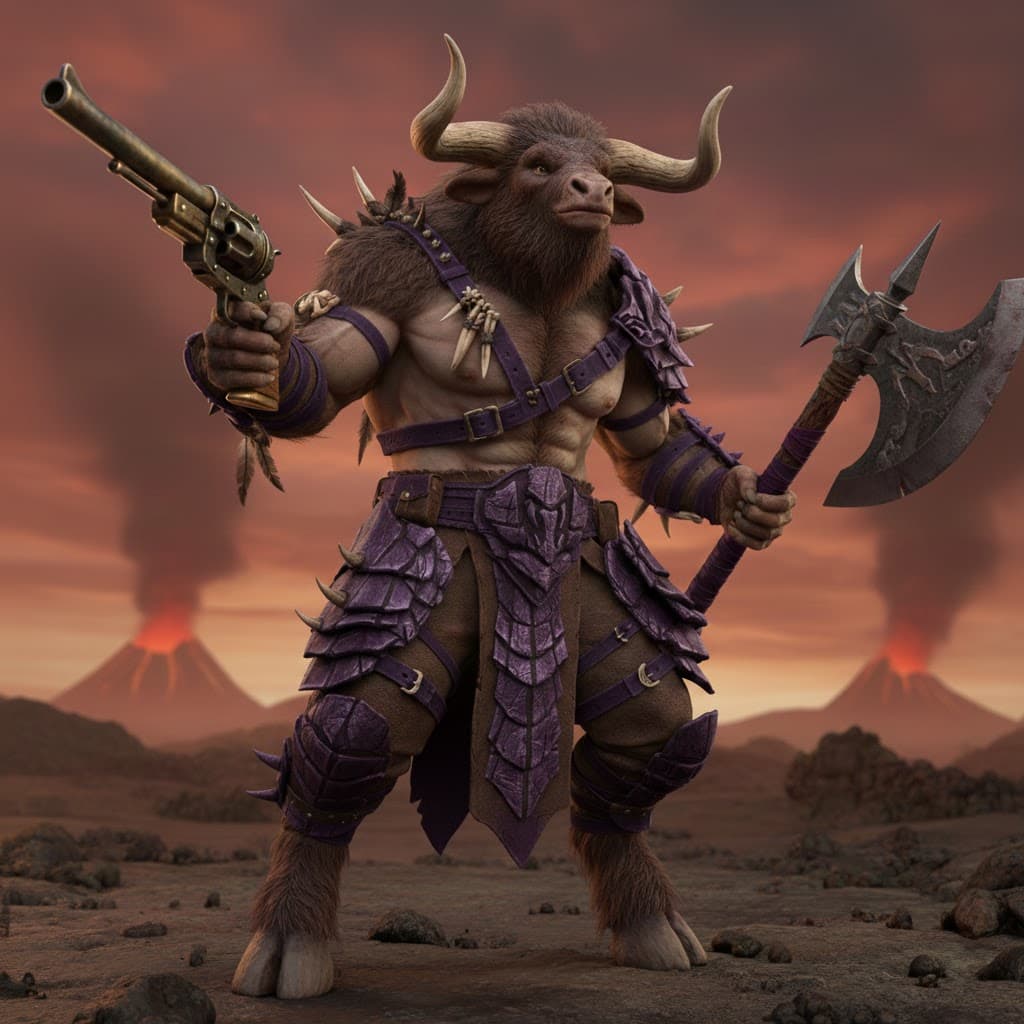
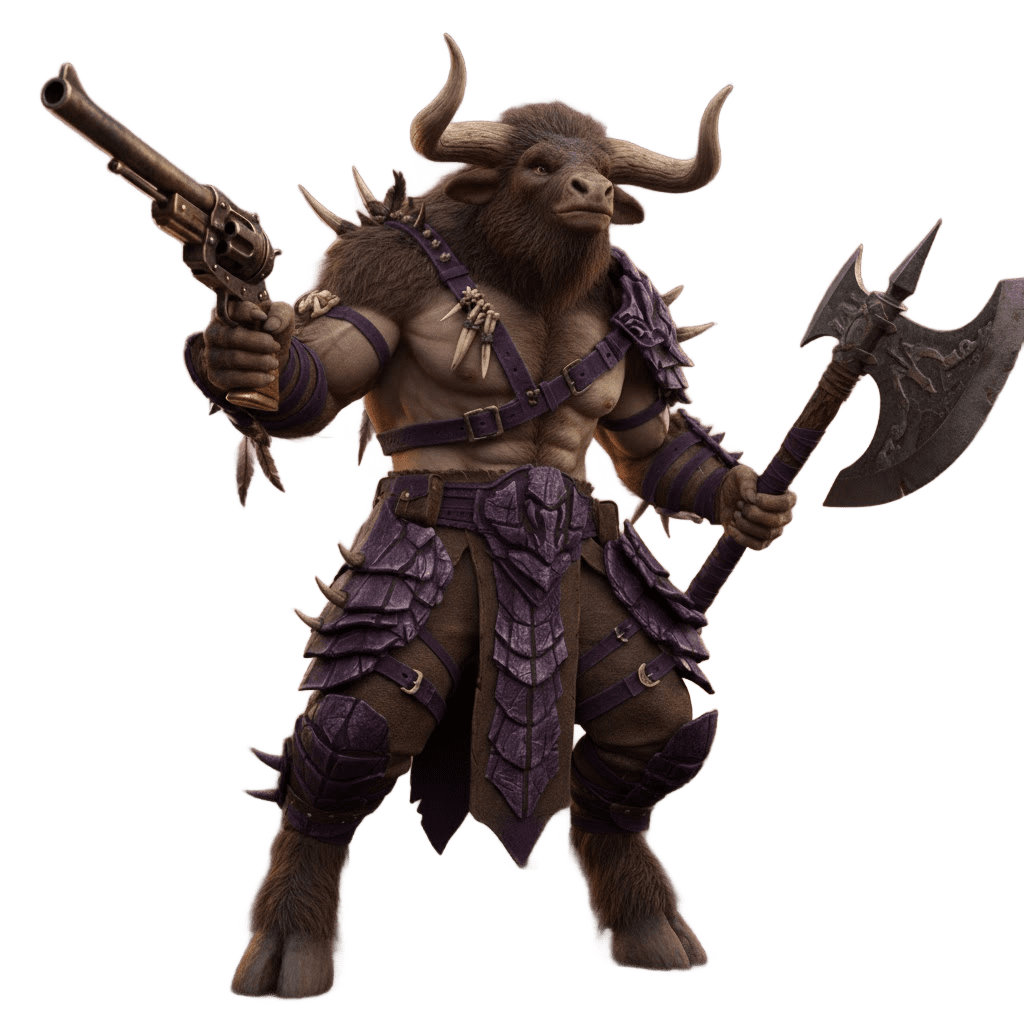
Artifact Prevention
A busy background confuses the AI, leading to 'merged' geometry. Removing it creates a sharp, standalone mesh.


Shadow Elimination
Cast shadows in the image can become solid objects in 3D. Removal ensures the subject sits flat on the ground plane later.
Best Practices
Use When Results Fail
If the 3D output looks distorted or includes parts of the scenery, try removing the background and regenerating.
Complex Subjects
For blurry or low-quality inputs, use our 'Image to 3D Style Transformer' first to sharpen details, then remove the background.
Prioritize Accuracy
Use background-free images for the most accurate 3D conversion in both Base and Pro modes.
Ground Planes
Don't keep the floor in the image. It's better to add a ground plane in your 3D software after generation.