Face Count
Pro AI 3D Generator Guide
Quick Start Guide
Upload Reference
Drop your image here. Clean backgrounds and even lighting give the best results.
Configure & Generate
Adjust settings like Face Count or Steps if needed, then click Generate.
Download Asset
Export your model in .OBJ, .GLB, or .STL format for immediate use.
See What’s Possible
Check the Example Gallery on the right to see high-quality inputs and the detailed 3D models they produce.




Input Image Best Practices
Clean Backgrounds Work Best: Use images with a solid color or transparent background. Busy backgrounds can confuse the AI and create "ghost" geometry.
Lighting Matters: Ensure your subject is evenly lit. Strong shadows or overexposed highlights will be baked into the 3D texture.
Distinct Angles: An isometric (3/4 view) or a clear front view usually yields the best depth estimation.
Avoid Flat Vectors: Pure 2D vectors often result in flat 3D models. Use our AI Image Editor to add depth and realism.
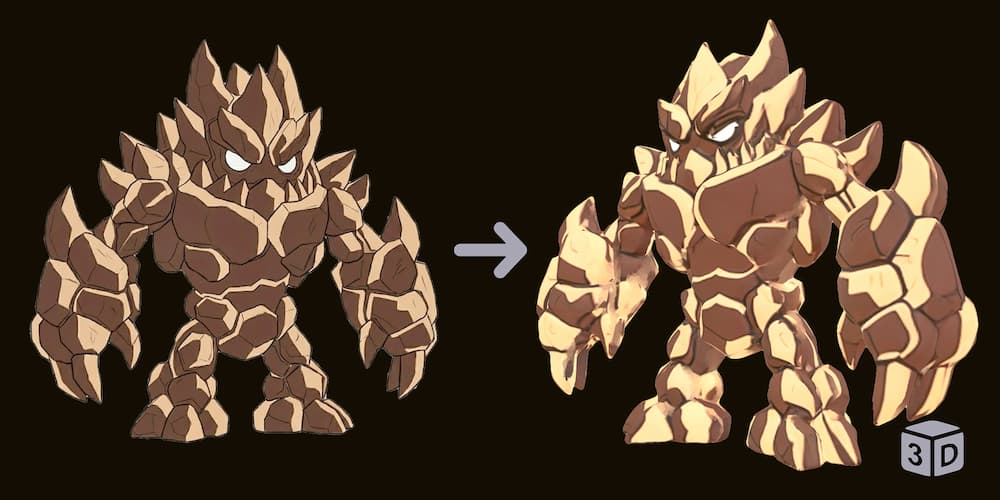
Avoid Flat Images
2D vectors lack depth info, causing flat geometry.
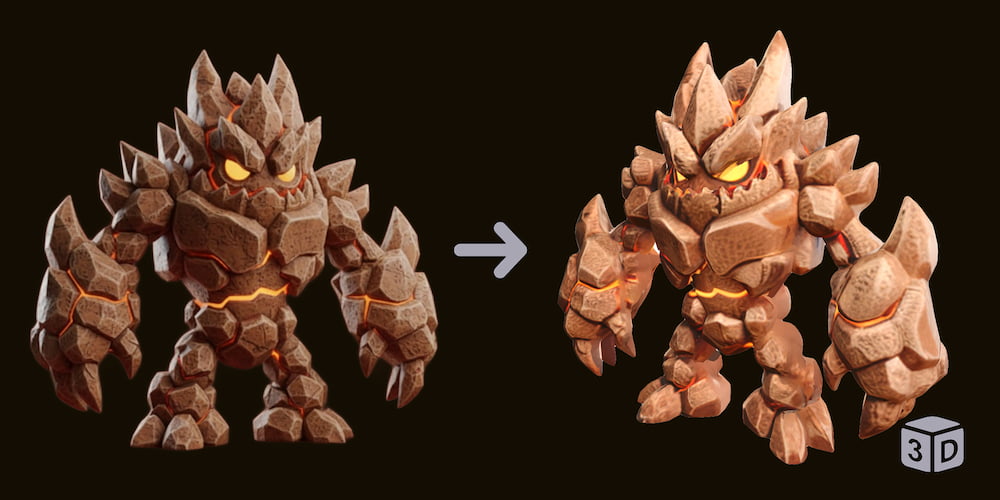
Use Depth-Rich Images
Images with shading/texture create volume.
Choose the Right Generator
Base
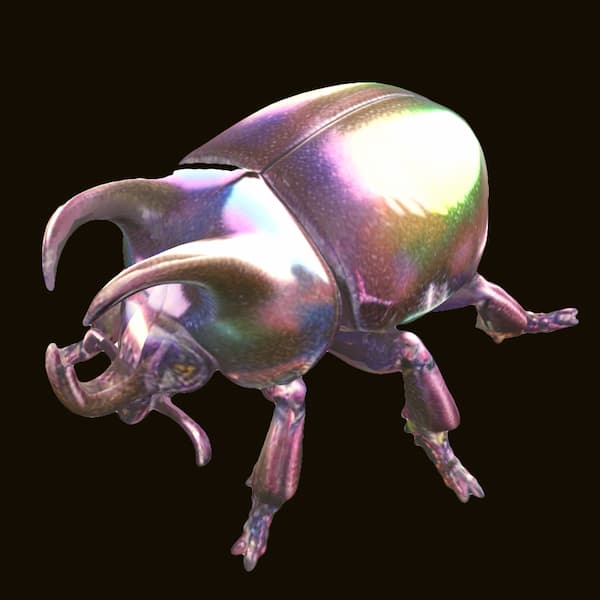
Base is suitable for generating simple 3D models. It prioritizes speed and obtaining a 3D result at a lower cost.
Pro
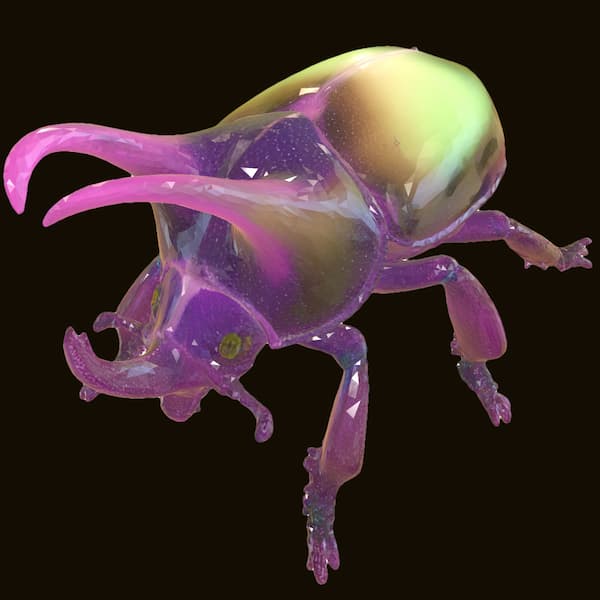
Pro offers better modeling quality and parameter control. It balances speed and detail, making it ideal for standard assets.
Ultra
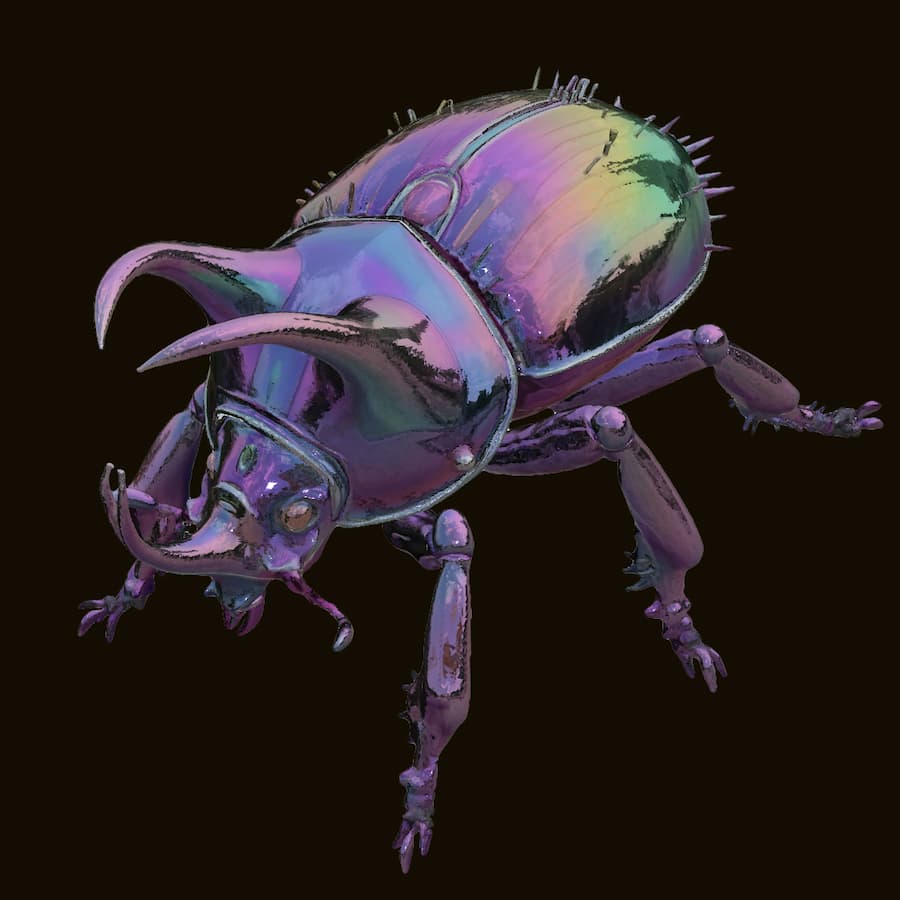
Ultra is our high-fidelity model capable of generating realistic textures for complex models, offering the highest quality.
Parameter Cheatsheet
Face Count (Poly Count)
Low (~5k) for mobile/web. High (20k+) for rendering. Controls mesh smoothness.
Generation Steps
Controls refinement. 20 is standard. Higher steps (30-50) improve quality but take longer.
Number Chunks
Increase this for objects with complex, separated parts (like hair or thin limbs).
Octree Resolution
256 is standard. Use 512 for sharper edges and higher fidelity geometry.
Pro Tips for Generating 3D Model
Don't fear the "Remesh"
If the surface looks rough, try increasing the Octree Resolution and regenerating to smooth out artifacts.
Patience for Quality
Increasing Steps to 30-50 can significantly improve details, though it requires more processing time.
Front vs. Perspective
While 3/4 views are great, a direct Front View often yields the most accurate structural results for this model.